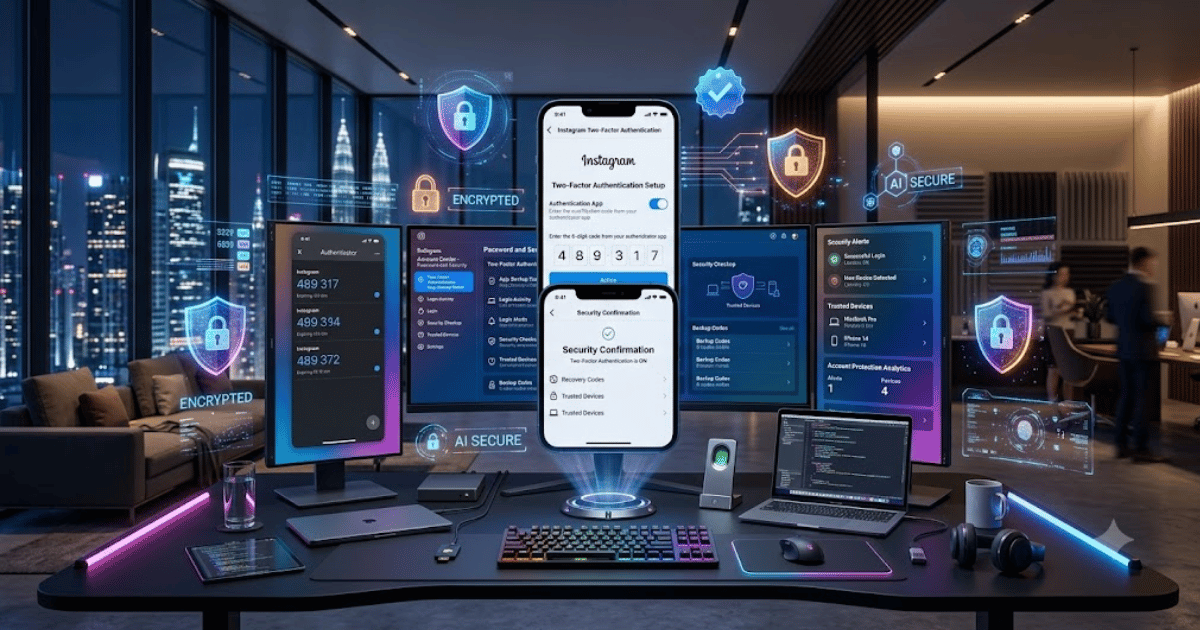
How to Turn On Two-Factor Authentication on Instagram in 2026 – Complete Step-by-Step Guide for Beginners
Instagram stores your personal photos, messages, followers, and other important information. If someone gets your password, they could access your account. That’s why enabling Two-Factor Authentication (2FA) is one of the best ways to protect your Instagram account.
In this guide, you’ll learn how to enable Two-Factor Authentication on Instagram in 2026 using the latest Instagram security settings.
What Is Two-Factor Authentication?
Two-Factor Authentication (2FA) is an extra security feature that requires both your password and a verification code when you log in from a new device. Even if someone knows your password, they won’t be able to access your account without the verification code.
Benefits of Enabling Instagram 2FA
- Better account security
- Protection against hackers
- Extra login verification
- Safer personal information
- Reduced risk of unauthorized access
Requirements Before Enabling 2FA
Before you begin, make sure you have:
- An Instagram account
- Your account password
- Access to your mobile phone
- A stable internet connection
- An authenticator app (recommended) or access to SMS verification
How to Enable Two-Factor Authentication on Instagram
Step 1: Open Instagram
Launch the Instagram app on your Android or iPhone.
Step 2: Open Your Profile
Tap your profile picture in the bottom-right corner.
Step 3: Open Settings
Tap the three-line menu.
Select:
Settings and Activity
Step 4: Open Account Center
Scroll down and tap:
Account Center
Step 5: Open Password & Security
Tap:
Password and Security
Then select:
Two-Factor Authentication
Step 6: Choose Your Instagram Account
Select the Instagram account you want to protect.
Step 7: Choose a Security Method
Instagram usually offers:
- Authentication App (Recommended)
- WhatsApp Verification (if available)
- Text Message (SMS)
Choose the option that works best for you.
Step 8: Complete Verification
Follow the on-screen instructions.
Enter the verification code and tap Done.
Your Instagram account is now protected with Two-Factor Authentication.
Best Security Practices
For maximum protection:
- Use an authenticator app instead of SMS whenever possible.
- Save your backup recovery codes.
- Never share verification codes.
- Keep your recovery email updated.
- Change your password regularly.
Common Problems
Verification Code Not Received
- Check your mobile signal.
- Verify your phone number.
- Request another code.
Lost Your Phone
Use your backup codes or recovery options to regain access.
Authentication App Not Working
Ensure your phone’s date and time are set automatically and try syncing the app again.
Final Thoughts
Enabling Two-Factor Authentication on Instagram in 2026 is one of the simplest and most effective ways to protect your account. It only takes a few minutes to set up but provides a significant increase in security against unauthorized access.
Frequently Asked Questions (FAQs)
1. Is Two-Factor Authentication free?
Yes. Instagram provides Two-Factor Authentication free of charge.
2. Which 2FA method is the safest?
An authentication app is generally more secure than SMS verification.
3. Can I disable 2FA later?
Yes. You can turn it off anytime through the same security settings.
4. What happens if I lose my phone?
You can use your saved backup codes or other recovery methods to regain access.
5. Does Instagram support WhatsApp verification?
In some regions and for some accounts, Instagram offers WhatsApp as a verification method alongside SMS and authenticator apps.