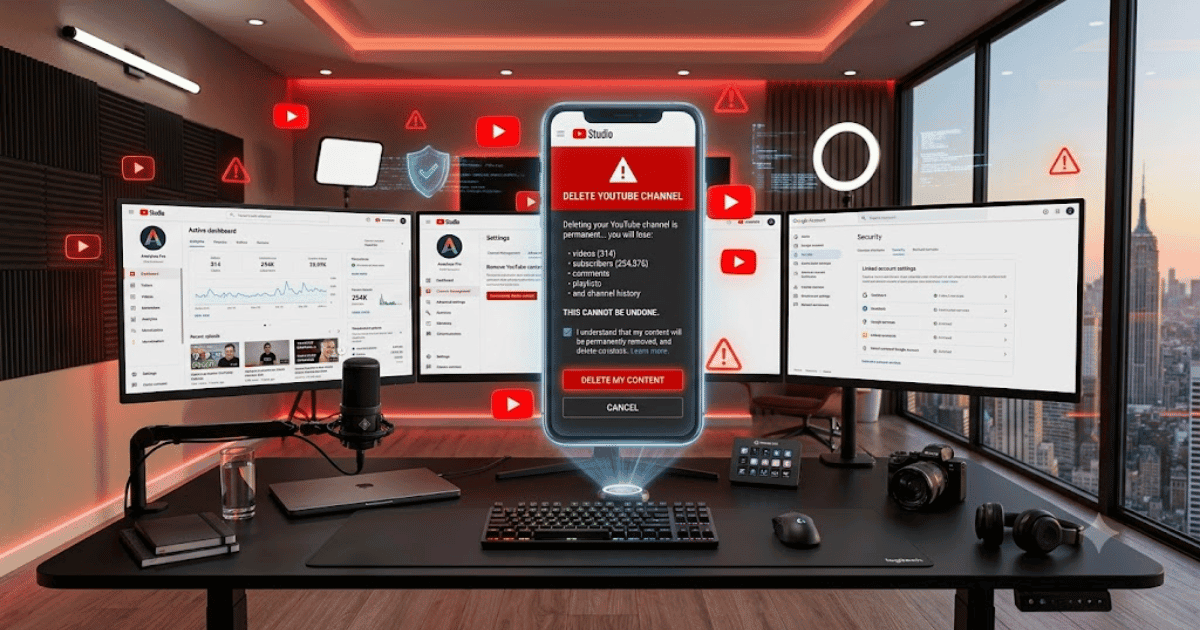
How to Delete a YouTube Account in 2026 – Complete Step-by-Step Guide for Beginners
Many users search for how to delete a YouTube account, but it’s important to understand that YouTube accounts are linked to your Google Account. In most cases, you can delete your YouTube channel without deleting your entire Google Account. This allows you to remove your videos, comments, playlists, and channel while keeping Gmail, Google Drive, and other Google services.
In this guide, you’ll learn how to safely delete your YouTube channel in 2026.
Difference Between Deleting a YouTube Channel and Google Account
Before you continue, understand the difference:
- Delete YouTube Channel: Removes your YouTube content only.
- Delete Google Account: Removes Gmail, YouTube, Google Drive, Photos, Contacts, and all Google services permanently.
For most users, deleting only the YouTube channel is the better option.
Requirements Before Deleting Your YouTube Channel
Before deleting your channel, make sure you have:
- Access to your Google Account
- Your account password
- A backup of important videos (if needed)
- A stable internet connection
How to Delete a YouTube Account (YouTube Channel)
Step 1: Sign In to YouTube
Open YouTube in your browser and sign in with your Google Account.
Step 2: Open YouTube Studio
Click your profile picture in the top-right corner.
Select:
YouTube Studio
Step 3: Open Settings
In the left sidebar, click:
Settings
Step 4: Open Channel Settings
Select:
Channel
Then click:
Advanced Settings
Step 5: Remove YouTube Content
Scroll down and click:
Remove YouTube Content
Google may ask you to enter your password again.
Step 6: Choose Delete Option
You’ll see two options:
- Hide My Channel
- Permanently Delete My Content
Select:
I Want to Permanently Delete My Content
Step 7: Confirm the Deletion
Read the warning carefully.
Tick the confirmation checkboxes acknowledging that your videos, comments, playlists, subscribers, and other channel content will be permanently removed.
Step 8: Delete Your Channel
Click:
Delete My Content
Your YouTube channel will now be scheduled for permanent deletion.
How to Delete Your Entire Google Account
If you also want to remove Gmail, Google Photos, Google Drive, and all other Google services:
- Open your Google Account settings.
- Go to Data & Privacy.
- Select Delete Your Google Account.
- Verify your password.
- Follow the on-screen instructions.
Warning: This action permanently deletes all Google services associated with your account.
Benefits of Deleting a YouTube Channel
Deleting your channel can help you:
- Remove old content
- Protect your privacy
- Start a new YouTube channel
- Remove unwanted videos
- Reduce your online presence
Common Problems
Can’t Find “Remove YouTube Content”
Make sure you’re logged into the correct Google Account that owns the channel.
Forgot Your Password
Reset your Google Account password before attempting deletion.
Accidentally Deleted Your Channel
In some cases, recently deleted channels may be recoverable within a limited period, but recovery is not guaranteed. Act quickly if you deleted it by mistake.
Security Tips
Before deleting your channel:
- Download important videos.
- Export your Google data if needed.
- Remove third-party app access.
- Verify your recovery email and phone number.
- Review your Google security settings.
Final Thoughts
Learning how to delete a YouTube account in 2026 is straightforward once you understand the difference between deleting a YouTube channel and deleting your entire Google Account. If you only want to stop using YouTube, deleting your channel is usually the safest choice because it leaves your Gmail and other Google services untouched.
Frequently Asked Questions (FAQs)
1. Can I delete my YouTube channel without deleting my Google Account?
Yes. You can permanently delete your YouTube channel while keeping your Google Account and services like Gmail and Google Drive.
2. Will deleting my YouTube channel delete my Gmail?
No. Deleting your YouTube channel does not delete your Gmail account. Gmail is only removed if you delete your entire Google Account.
3. Can I recover a deleted YouTube channel?
Some recently deleted channels may be recoverable for a limited time, but permanent deletion cannot always be reversed.
4. What happens to my videos after deleting my channel?
All uploaded videos, comments, playlists, subscribers, and channel information are permanently removed.
5. Should I hide my channel instead of deleting it?
If you’re unsure, hiding your channel is a good option because it lets you make your content private without permanently deleting it.