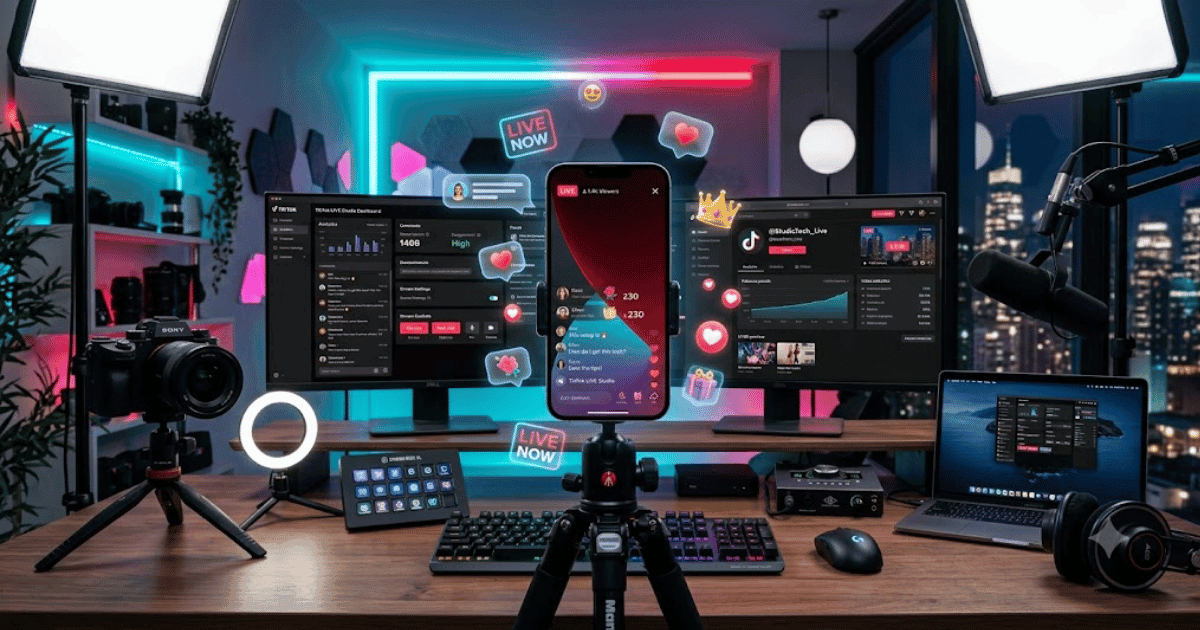
How to Go LIVE on TikTok in 2026 – Complete Step-by-Step Guide for Beginners
TikTok LIVE allows creators to interact with their audience in real time through live video. You can use LIVE sessions to answer questions, interact with followers, showcase products, host discussions, demonstrate skills, and build a stronger connection with your audience.
If you’re new to TikTok LIVE, the process may seem complicated at first. However, once your account meets TikTok’s requirements, starting a live stream is relatively simple.
In this guide, you’ll learn how to go LIVE on TikTok in 2026, including eligibility requirements, setup steps, streaming tips, and common problems.
What Is TikTok LIVE?
TikTok LIVE is a real-time streaming feature that allows creators to broadcast directly to their followers and interact with viewers through comments, reactions, and other available LIVE features.
Depending on your account and region, TikTok may also provide additional LIVE features such as:
- LIVE gifts
- Co-hosting
- LIVE events
- Moderation tools
- Q&A features
- LIVE shopping or product features where available
TikTok LIVE Requirements
Before trying to start a LIVE session, make sure your account meets TikTok’s current eligibility requirements.
TikTok’s requirements can vary by region and account status. Generally, you may need to:
- Meet TikTok’s minimum age requirement for LIVE.
- Have an account in good standing.
- Meet TikTok’s follower eligibility requirement where applicable.
- Follow TikTok’s Community Guidelines and LIVE policies.
If the LIVE option does not appear on your account, your account may not currently meet the requirements or the feature may not be available in your region.
How to Go LIVE on TikTok
Step 1: Open TikTok
Open the TikTok app on your Android or iPhone.
Make sure you’re signed in to the account you want to use for your LIVE stream.
Step 2: Tap the Plus Button
Tap the + button at the bottom of the TikTok app.
This opens the content creation screen.
Step 3: Select LIVE
Swipe through the options available near the recording button until you find:
LIVE
If LIVE is available for your account, you’ll be able to access the LIVE setup screen.
Step 4: Add a LIVE Title
Enter a short and attractive title for your stream.
For example:
- Q&A With My Followers
- Gaming LIVE
- Let’s Talk About YouTube
- Live Website Design Session
- Ask Me Anything
A clear title helps viewers understand what your LIVE session is about.
Step 5: Set Up Your Camera
Position your phone in a stable location.
For better results:
- Use a tripod.
- Clean your camera lens.
- Place the camera at eye level.
- Make sure your face or main subject is properly framed.
Step 6: Check Your Lighting
Good lighting can make a major difference in LIVE video quality.
Try to:
- Face a light source.
- Avoid strong light directly behind you.
- Use a ring light or softbox when necessary.
- Keep your background clean and professional.
Step 7: Check Your Microphone
Audio quality is extremely important during live streaming.
Before starting:
- Test your microphone.
- Reduce background noise.
- Keep the microphone close enough to capture clear audio.
- Avoid noisy environments.
Step 8: Configure LIVE Settings
Review the available LIVE settings before starting.
Depending on your account and region, you may be able to configure options related to:
- Moderation
- Comments
- Gifts
- Co-hosts
- Audience controls
- Filters and effects
Step 9: Start Your LIVE
When everything is ready, tap:
TikTok will begin broadcasting your video to viewers.
Step 10: Interact With Your Viewers
During your LIVE session, respond to comments and questions.
You can:
- Answer viewer questions.
- Thank new viewers.
- Respond to comments.
- Encourage discussion.
- Invite eligible co-hosts.
- Keep the conversation active.
How to Make Your TikTok LIVE More Professional
A professional setup can significantly improve your streaming experience.
Use a Stable Internet Connection
A weak connection can cause:
- Video buffering
- Audio interruptions
- Stream disconnections
- Poor video quality
Use a reliable Wi-Fi or mobile data connection.
Improve Your Lighting
Good lighting makes your video clearer and more professional.
A basic ring light can be enough for beginners.
Use a Quality Microphone
Viewers may tolerate average video quality, but poor audio can quickly make them leave.
Consider using a dedicated microphone if you’re planning to stream regularly.
Prepare a Topic
Avoid starting a LIVE session without knowing what you’ll discuss.
Prepare a few topics or questions beforehand.
TikTok LIVE Ideas for Beginners
If you’re not sure what to do during your first LIVE, try:
- Q&A sessions
- Gaming streams
- Tutorials
- Product demonstrations
- Behind-the-scenes content
- Daily routine discussions
- Tech discussions
- Website design sessions
- Interview sessions
- Audience challenges
Common TikTok LIVE Problems
LIVE Option Is Missing
If you can’t find the LIVE option:
- Check whether your account meets TikTok’s eligibility requirements.
- Make sure your TikTok app is updated.
- Check whether LIVE is available in your region.
- Review your account status.
LIVE Stream Keeps Disconnecting
Try:
- Switching to a stronger Wi-Fi connection.
- Moving closer to your router.
- Closing other apps.
- Restarting TikTok.
- Updating the app.
Poor Video Quality
Make sure you have:
- Good lighting
- A clean camera lens
- A stable internet connection
- A capable smartphone
Poor Audio Quality
Try using:
- A dedicated microphone
- Headphones with a microphone
- A quieter room
TikTok LIVE Safety Tips
While streaming, protect your privacy.
Avoid showing:
- Home addresses
- Passwords
- Private documents
- Financial information
- Personal phone numbers
Also be careful when interacting with unknown users or clicking links shared during LIVE sessions.
Final Thoughts
Learning how to go LIVE on TikTok in 2026 can open new opportunities to connect with your audience in real time. Before starting, make sure your account meets TikTok’s current LIVE requirements and that your app is updated.
With good lighting, clear audio, a stable internet connection, and an interesting topic, even beginners can create professional and engaging TikTok LIVE sessions.
Frequently Asked Questions (FAQs)
1. How old do you have to be to go LIVE on TikTok?
TikTok has age requirements for LIVE features, and these requirements can vary depending on the feature and region. Check TikTok’s current rules for your account.
2. How many followers do I need to go LIVE on TikTok?
TikTok may require an account to meet a follower threshold before LIVE becomes available. The exact requirement can vary by region and account.
3. Why don’t I have the LIVE option on TikTok?
Your account may not currently meet TikTok’s eligibility requirements, LIVE may not be available in your region, or your app may need updating.
4. Can I go LIVE from a computer?
TikTok offers desktop and additional LIVE streaming tools for eligible creators in supported regions. Availability depends on your account and location.
5. Can I earn money from TikTok LIVE?
Eligible creators may be able to receive virtual gifts and access other monetization features, depending on TikTok’s policies, eligibility requirements, and regional availability.
- How to Create a TikTok Account in 2026 – Easy Beginner Guide
- How to Delete a TikTok Account in 2026 | Easy Guide Step
- How to Recover a Deleted TikTok Account in 2026 | Easy Guide
- How to Change Your TikTok Username in 2026 | Easy Guide
- How to Change Your TikTok Profile Picture | Easy Guide
- How to Change Your TikTok Display Name in 2026 | Easy Guide
- How to Change Your TikTok Password in 2026 | Easy Guide
- How to Enable Two-Step Verification on TikTok in 2026
- How to Verify Your TikTok Account in 2026 | Complete Guide