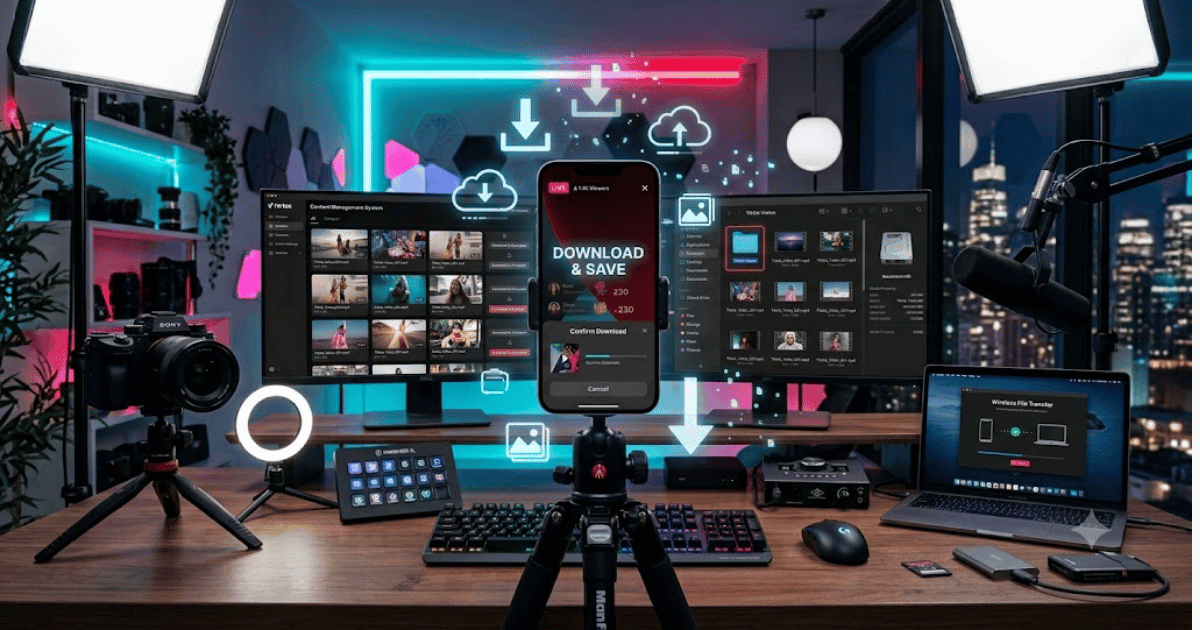
How to Download Your TikTok Videos in 2026 – Complete Step-by-Step Guide for Beginners
TikTok makes it easy to create and share short videos, but sometimes you may want to save your own videos to your phone or computer for backup, editing, or sharing on another platform.
Fortunately, TikTok provides built-in options for saving videos, although the available options can depend on whether the video has already been posted and your account settings.
In this guide, you’ll learn how to download your TikTok videos in 2026 using simple methods on Android, iPhone, and computer.
Why Download Your TikTok Videos?
Saving your own TikTok videos can be useful for:
- Creating a backup
- Editing videos later
- Sharing videos on other platforms
- Keeping original content
- Reusing videos for Instagram Reels or YouTube Shorts
- Saving important memories
Can You Download Your Own TikTok Videos?
Yes. TikTok provides options that allow creators to save their videos to their device.
You can usually save a video either before posting it or after publishing it, depending on the available settings.
How to Download Your TikTok Video Before Posting
If you’ve created a video but haven’t posted it yet, you can save it to your device before publishing.
Step 1: Open TikTok
Launch the TikTok app on your Android or iPhone.
Step 2: Create Your Video
Tap the + button and record or upload your video.
Add any desired:
- Text
- Music
- Filters
- Effects
- Stickers
Step 3: Continue to the Posting Screen
Tap Next to reach the final posting screen.
Step 4: Enable Save to Device
Look for the option related to:
Save to device
Turn it on if available.
Step 5: Post or Save the Video
Depending on the options available on your account, you can save the video to your device before completing the posting process.
Your video should then appear in your phone’s Gallery or Photos app.
How to Download Your Posted TikTok Video
You can also save a TikTok video that you’ve already posted.
Step 1: Open Your Profile
Open TikTok and tap:
Profile
Step 2: Select Your Video
Find and open the TikTok video you want to download.
Step 3: Open the Share Menu
Tap the:
Share
button.
Step 4: Select Save Video
Look for:
Tap the option to download the video to your device.
Step 5: Check Your Gallery
Open your phone’s:
Gallery or Photos
Your saved TikTok video should appear there.
How to Download TikTok Videos on Android
On Android devices:
- Open TikTok.
- Go to your profile.
- Open the video.
- Tap Share.
- Select Save video.
- Open your Gallery to find the saved video.
The exact menu names can vary depending on your TikTok app version and device.
How to Download TikTok Videos on iPhone
On an iPhone:
- Open TikTok.
- Tap Profile.
- Open your video.
- Tap Share.
- Select Save video.
- Open the Photos app.
The video should be saved to your camera roll if the required permissions are enabled.
How to Save a TikTok Video Without Posting It
If you don’t want to publish a video publicly, TikTok may provide options to save your content to your device during the creation process.
Another option is to save the video as a draft, although drafts are stored within the TikTok app and are not the same as a backup file stored independently on your phone.
For important videos, saving a copy directly to your device is safer.
How to Download Your TikTok Videos Without Losing Quality
For the best possible quality:
- Keep the original video file.
- Avoid repeatedly downloading and re-uploading compressed versions.
- Record using the highest suitable camera quality.
- Save the original video before posting when possible.
- Keep a backup on cloud storage or an external drive.
How to Transfer TikTok Videos to a Computer
After saving your video to your phone, you can transfer it to your computer using:
- USB cable
- Cloud storage
- Wireless file transfer
- Messaging apps
For large video files, a USB cable or cloud storage is usually more practical.
Why Can’t I See the Save Video Option?
If Save video isn’t available, possible reasons include:
- The creator has disabled video downloads.
- The video isn’t eligible for downloading.
- Your app version is outdated.
- The account or video has specific privacy restrictions.
If you’re downloading your own content, check your TikTok privacy and download settings.
How to Save Your TikTok Videos for Backup
If you’re regularly creating TikTok content, it’s a good idea to maintain a separate backup.
You can store your videos in:
- Google Drive
- OneDrive
- iCloud
- External SSD
- Computer storage
Organize your files using folders based on year, month, or content category.
Important Copyright Considerations
When downloading your own TikTok videos, you retain the rights you have to your original content.
However, if your video contains:
- Copyrighted music
- Third-party footage
- Other people’s images
- Licensed material
you should make sure you have the appropriate rights before reusing or distributing the downloaded version elsewhere.
Common Problems
Video Isn’t Appearing in Gallery
Check whether TikTok has permission to access your device’s photos or storage.
Download Is Taking Too Long
Make sure you have a stable internet connection and enough storage space on your device.
Downloaded Video Has a Watermark
TikTok may include platform branding or a watermark when saving posted videos. If you want a clean original copy, keep the original video file you created before uploading.
TikTok Can’t Save the Video
Try:
- Updating TikTok.
- Checking storage space.
- Restarting the app.
- Checking device permissions.
- Trying again on a stable connection.
Best Practices for TikTok Creators
If you regularly post videos, follow these practices:
- Keep original video files.
- Create a dedicated backup folder.
- Back up important content regularly.
- Keep your video titles and project files organized.
- Don’t rely only on TikTok as your content storage.
Final Thoughts
Learning how to download your TikTok videos in 2026 is useful for creators who want to keep a backup of their content or reuse videos on other platforms. The easiest method is usually TikTok’s built-in Save video option when it is available.
For important content, always keep the original video file separately so you don’t depend entirely on a downloaded copy from TikTok.
Frequently Asked Questions (FAQs)
1. Can I download my own TikTok videos?
Yes. You can generally save your own posted videos using TikTok’s built-in Save video option when available.
2. Where are downloaded TikTok videos saved?
On Android, videos are generally saved to your Gallery or Photos app. On iPhone, they normally appear in the Photos app.
3. Can I save a TikTok video before posting it?
Yes. TikTok may provide a Save to device option during the posting process, depending on your app version and settings.
4. Why does my downloaded TikTok video have a watermark?
TikTok may add platform branding or a watermark when saving posted videos. Keeping the original video file is the best way to preserve a clean copy.
5. Can I download TikTok videos to my computer?
Yes. You can first save your video to your phone and then transfer it to a computer using USB, cloud storage, or another file-transfer method.
- How to Create a TikTok Account in 2026 – Easy Beginner Guide
- How to Delete a TikTok Account in 2026 | Easy Guide Step
- How to Recover a Deleted TikTok Account in 2026 | Easy Guide
- How to Change Your TikTok Username in 2026 | Easy Guide
- How to Change Your TikTok Profile Picture | Easy Guide
- How to Change Your TikTok Display Name in 2026 | Easy Guide
- How to Change Your TikTok Password in 2026 | Easy Guide
- How to Enable Two-Step Verification on TikTok in 2026
- How to Verify Your TikTok Account in 2026 | Complete Guide