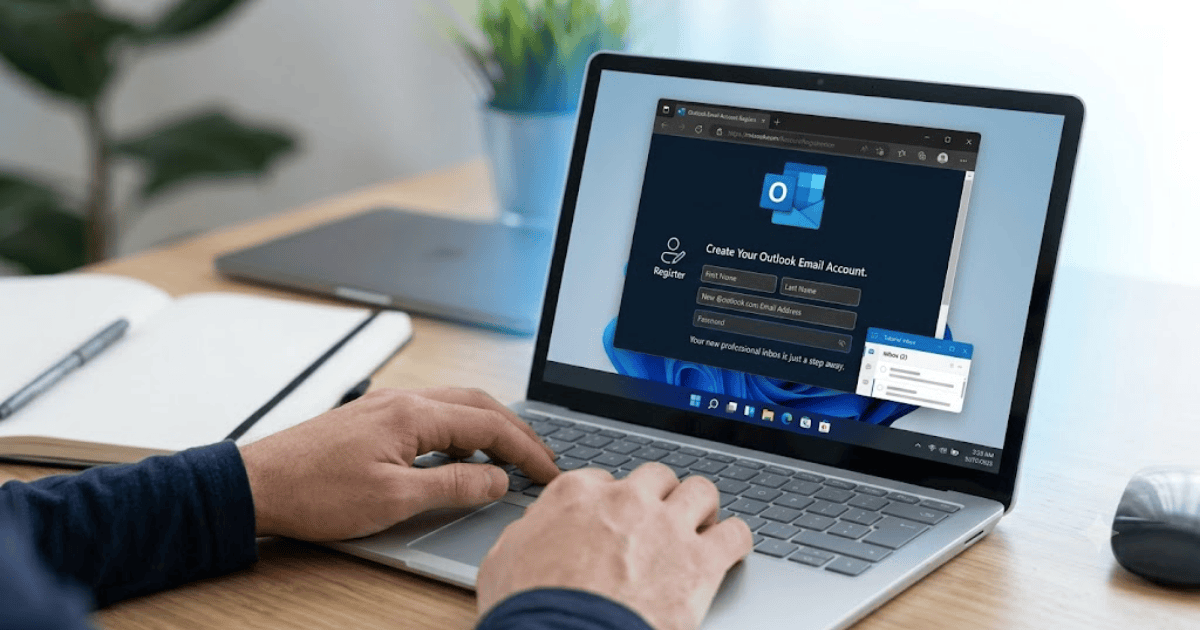
How to Create an Outlook Email Account in 2026 – Step-by-Step Guide
Outlook is one of the most trusted email services provided by Microsoft. It allows users to send and receive emails, manage calendars, store contacts, and access Microsoft services like OneDrive, Microsoft 365, and Teams with a single account.
If you’re looking for a reliable and professional email service, Outlook is an excellent choice. In this guide, you’ll learn how to create an Outlook email account in 2026 using a computer or mobile device.
What Is Outlook?
Outlook is Microsoft’s free email platform that offers secure communication and productivity tools. Besides email, it includes features such as calendars, task management, cloud storage integration, and spam protection.
People use Outlook to:
- Send and receive emails
- Manage work and personal communication
- Schedule meetings
- Store contacts
- Access Microsoft services
- Organize tasks and calendars
Requirements Before Creating an Outlook Email Account
Before getting started, you’ll need:
- A smartphone or computer
- A stable internet connection
- A mobile number or recovery email
- A secure password
How to Create an Outlook Email Account
Step 1: Visit the Outlook Sign-Up Page
Open your preferred web browser and visit the official Outlook registration page.
Step 2: Click Create Free Account
Select Create Free Account to begin.
Step 3: Choose Your Email Address
Create a unique email address ending with:
- @outlook.com
- @hotmail.com (if available)
Choose an address that is easy to remember and professional.
Step 4: Create a Strong Password
Your password should include:
- Uppercase letters
- Lowercase letters
- Numbers
- Special characters
Never reuse passwords from other websites.
Step 5: Enter Your Personal Information
Provide:
- First name
- Last name
- Country
- Date of birth
Step 6: Verify Your Identity
Microsoft will ask you to complete a verification step.
You may receive:
- A verification code
- A security challenge
Complete the verification to continue.
Step 7: Finish Registration
Once verification is complete, your Outlook email account will be ready to use.
How to Set Up Your Outlook Inbox
After creating your account:
Add a Profile Picture
Upload a clear profile photo.
Customize Your Inbox
Choose:
- Theme
- Layout
- Reading pane
- Notifications
Add Recovery Information
Add:
- Recovery email
- Phone number
This helps recover your account if needed.
Key Features of Outlook
Outlook offers many useful features.
Professional Email Service
Perfect for students, professionals, and businesses.
Calendar Integration
Schedule meetings and reminders.
OneDrive Integration
Store files securely in the cloud.
Spam Protection
Automatically filters suspicious emails.
Cross-Device Access
Use Outlook on:
- Windows
- Android
- iPhone
- Web browser
Common Problems During Registration
Email Address Already Exists
Choose another email address or modify your username.
Verification Failed
Double-check your recovery information and internet connection.
Weak Password
Create a stronger password that meets Microsoft’s security requirements.
Tips to Keep Your Outlook Account Secure
- Enable two-step verification.
- Keep recovery information updated.
- Never share your password.
- Check recent login activity regularly.
- Avoid opening suspicious email attachments.
Benefits of an Outlook Email Account
Creating an Outlook account allows you to:
- Send professional emails
- Access Microsoft 365
- Store files with OneDrive
- Sync across multiple devices
- Manage calendars and contacts
- Improve productivity
Final Thoughts
Learning how to create an Outlook email account in 2026 is simple and takes only a few minutes. Once your account is ready, you can communicate professionally, organize your schedule, and access Microsoft’s powerful productivity tools.
Whether you’re using Outlook for school, work, or personal communication, it’s one of the most secure and reliable email services available today.