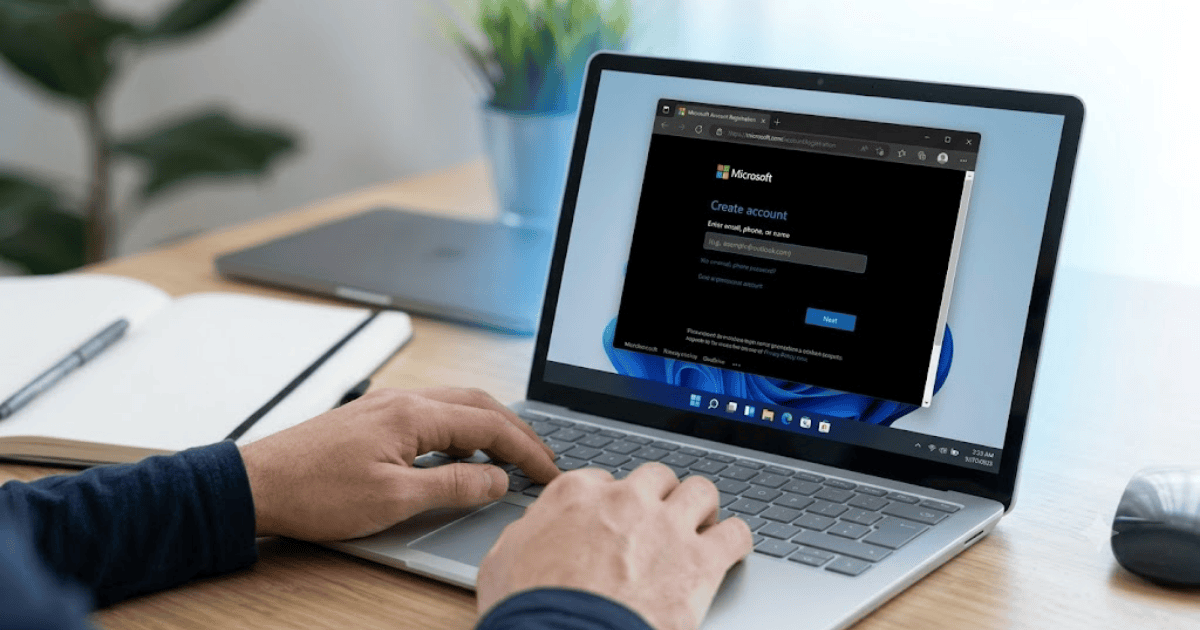
How to Create a Microsoft Account in 2026 – Step-by-Step Guide
A Microsoft account gives you access to many Microsoft services with a single login. Whether you want to use Outlook, OneDrive, Microsoft 365, Xbox, Microsoft Store, or Windows features, creating a Microsoft account is the first step.
In this guide, you’ll learn how to create a Microsoft account in 2026 on both mobile devices and computers. The process is free, beginner-friendly, and only takes a few minutes.
What Is a Microsoft Account?
A Microsoft account is a free online account that lets you sign in to Microsoft services using one email address and password.
With one account, you can access:
- Outlook
- OneDrive
- Microsoft 365
- Microsoft Store
- Xbox
- Skype
- Microsoft Teams
- Windows devices
Requirements Before Creating a Microsoft Account
Before you begin, make sure you have:
- A computer or smartphone
- A stable internet connection
- A mobile number or an existing email address
- A strong password
How to Create a Microsoft Account on a Computer
Step 1: Visit Microsoft’s Sign-Up Page
Open your web browser and go to the official Microsoft account registration page.
Step 2: Click Create Account
Select Create One to start the registration process.
Step 3: Choose an Email Address
You can:
- Create a new Outlook email address.
- Use an existing Gmail or other email address.
Step 4: Create a Strong Password
Choose a secure password that includes:
- Uppercase letters
- Lowercase letters
- Numbers
- Special characters
Step 5: Enter Your Personal Information
Provide:
- First name
- Last name
- Country
- Date of birth
Step 6: Verify Your Identity
Microsoft will send a verification code to your email or phone number.
Enter the code to continue.
Step 7: Complete Registration
After verification, your Microsoft account will be ready to use.
How to Create a Microsoft Account on Mobile
The process is similar on Android and iPhone.
Step 1: Open Your Browser or Microsoft App
Visit Microsoft’s official website or install a Microsoft app.
Step 2: Tap Create Account
Choose the registration option.
Step 3: Complete Registration
Follow the same steps:
- Password
- Personal details
- Verification
Once completed, your account will be activated.
How to Set Up Your Microsoft Account
After creating your account, spend a few minutes completing your profile.
Add a Profile Photo
Upload a professional profile picture.
Update Security Information
Add:
- Recovery email
- Mobile number
This makes account recovery easier.
Enable Two-Step Verification
This greatly improves your account security.
Benefits of Having a Microsoft Account
Creating a Microsoft account gives you many advantages.
Access Outlook
Use Microsoft’s free email service.
Store Files in OneDrive
Save photos, documents, and videos securely in the cloud.
Use Microsoft 365
Access Word, Excel, PowerPoint, and other productivity tools.
Sign In to Windows
Sync settings across multiple Windows devices.
Access Xbox Services
Play games, save progress, and manage your gaming profile.
Common Registration Problems
Verification Code Not Received
Check:
- Spam folder
- Mobile network
- Correct email address
Weak Password
Create a stronger password with letters, numbers, and symbols.
Email Already Exists
Choose another email address or use an existing one.
Tips to Keep Your Microsoft Account Secure
- Enable two-step verification.
- Use a unique password.
- Never share verification codes.
- Regularly update your recovery information.
- Review your recent sign-in activity.
Final Thoughts
Learning how to create a Microsoft account in 2026 is simple and free. With a Microsoft account, you’ll have access to essential services like Outlook, OneDrive, Microsoft 365, Xbox, and Windows synchronization.
Whether you’re a student, professional, gamer, or business owner, a Microsoft account can help you stay productive and connected across all Microsoft devices and services.