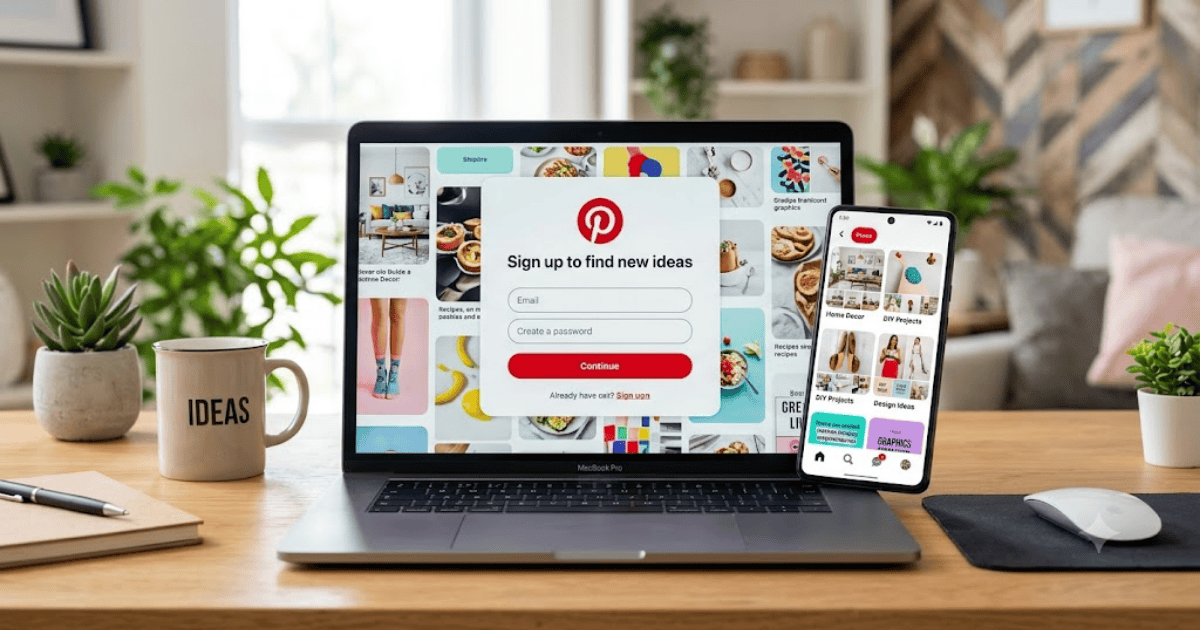
How to Create a Pinterest Account in 2026 – Step-by-Step Guide
Pinterest is one of the world’s most popular visual discovery platforms. Millions of people use it every day to find inspiration for home decor, fashion, recipes, travel, business ideas, blogging, digital marketing, and DIY projects. If you’re a content creator, blogger, business owner, or simply looking for creative ideas, creating a Pinterest account is an excellent place to start.
In this guide, you’ll learn how to create a Pinterest account in 2026 using your computer or mobile device.
What Is Pinterest?
Pinterest is a visual search and social media platform where users save and organize ideas using Pins and Boards. Instead of sharing status updates, users discover images, videos, and links that inspire them.
People use Pinterest to:
- Find design ideas
- Save recipes
- Discover fashion trends
- Plan weddings and events
- Promote blogs and websites
- Drive traffic to online businesses
- Save educational content
Requirements Before Creating a Pinterest Account
Before you begin, make sure you have:
- A smartphone or computer
- A stable internet connection
- A valid email address, Google account, or Facebook account
- A secure password
How to Create a Pinterest Account
Step 1: Visit Pinterest
Open your browser and go to Pinterest’s official website or install the Pinterest app from your device’s app store.
Step 2: Click Sign Up
Select Sign Up to create a new account.
Step 3: Choose a Registration Method
You can register using:
- Email address
- Google account
- Facebook account (where available)
Step 4: Enter Your Information
If signing up with email, provide:
- Email address
- Password
- Age or date of birth (if requested)
Step 5: Verify Your Email
Pinterest may send a verification email.
Open your inbox and click the verification link to activate your account.
Step 6: Select Your Interests
Choose topics that interest you, such as:
- Technology
- Food
- Fashion
- Travel
- Home Decor
- Business
- DIY
- Fitness
Pinterest will personalize your home feed based on your interests.
How to Set Up Your Pinterest Profile
After creating your account:
Add a Profile Picture
Upload a clear personal photo or business logo.
Write a Short Bio
Describe yourself or your brand in a few words.
Add Your Website
If you have a blog or business website, add it to your profile.
How to Create Your First Board
Boards help organize your saved Pins.
Examples include:
- Blogging Tips
- Healthy Recipes
- Home Decoration
- Graphic Design Ideas
- Travel Destinations
Give each board a clear and descriptive name.
How to Save Your First Pin
Browse Pinterest and click Save on any Pin you like.
Choose the board where you want to save it.
Your ideas will stay organized for future reference.
Benefits of Using Pinterest
Pinterest offers several advantages.
Discover Creative Ideas
Find inspiration across thousands of topics.
Drive Website Traffic
Bloggers and businesses use Pinterest to attract visitors to their websites.
Organize Ideas
Save Pins into boards for easy access.
Promote Your Business
Share products, blog posts, and services with a global audience.
Learn New Skills
Explore tutorials, guides, and educational content.
Common Registration Problems
Verification Email Not Received
Check:
- Spam folder
- Promotions tab
- Correct email address
Unable to Sign Up
Ensure your browser or app is updated and your internet connection is stable.
Weak Password
Create a stronger password using letters, numbers, and special characters.
Tips to Keep Your Pinterest Account Secure
- Use a unique password.
- Enable two-factor authentication if available.
- Verify your email address.
- Keep your profile information updated.
- Avoid sharing your login details.
Final Thoughts
Learning how to create a Pinterest account in 2026 is simple and takes only a few minutes. Once your account is ready, you can save creative ideas, organize inspiration into boards, and even promote your blog or business to millions of users worldwide.
Whether you’re looking for inspiration or growing your online presence, Pinterest is a valuable platform for both personal and professional use.
Frequently Asked Questions (FAQs)
1. Is Pinterest free to use?
Yes. Pinterest is free to join and use. Optional advertising features are available for businesses.
2. Can I create a Pinterest account with my Google account?
Yes. Pinterest supports registration with Google, email, and in some regions, other supported sign-in methods.
3. Can I use Pinterest on my mobile phone?
Yes. Pinterest has official apps for Android and iPhone, and it also works in web browsers.
4. How long does it take to create a Pinterest account?
Most users can complete the sign-up process in less than five minutes.
5. Can Pinterest help drive traffic to my website?
Yes. Many bloggers, businesses, and creators use Pinterest to share content and attract visitors to their websites.