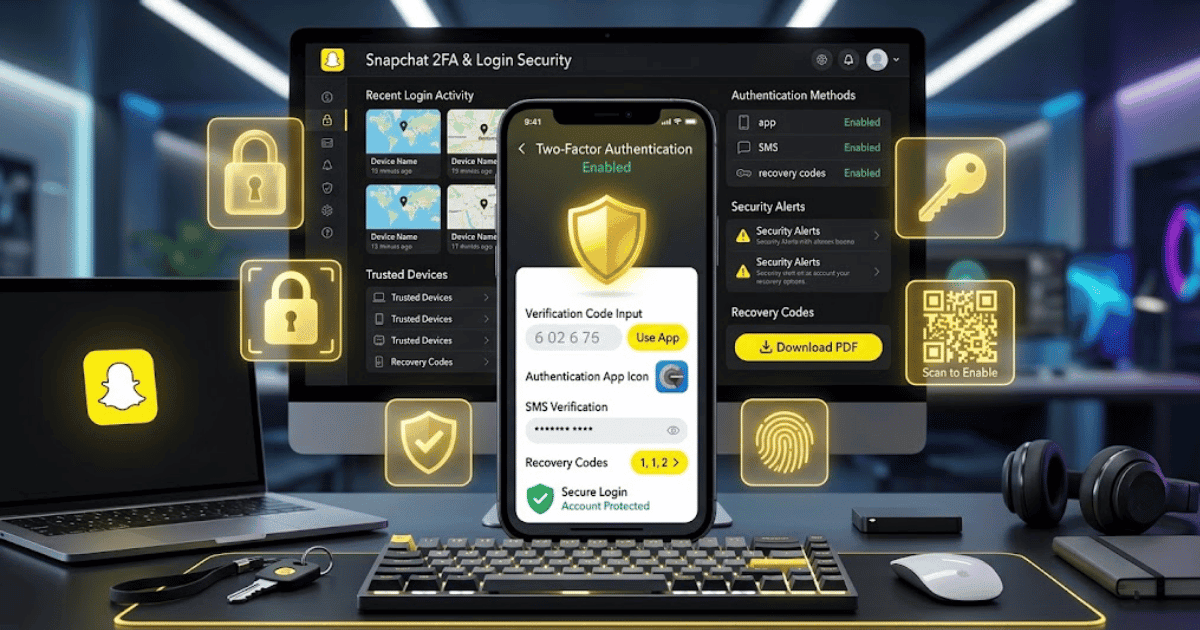
How to Enable Two-Factor Authentication on Snapchat in 2026 – Complete Step-by-Step Guide for Beginners
Your Snapchat password is important, but a password alone may not always provide enough protection. Two-factor authentication, often called 2FA or two-step verification, adds an extra security step when someone tries to access your account.
With login verification enabled, Snapchat may require an additional verification code when signing in from a new or unrecognized device.
In this guide, you’ll learn how to enable two-factor authentication on Snapchat in 2026 step by step.
What Is Two-Factor Authentication on Snapchat?
Two-factor authentication adds another layer of protection to your Snapchat account.
Normally, you sign in using:
- Your username or email.
- Your password.
With two-factor authentication enabled, Snapchat may also ask for an additional verification code.
This means that even if someone knows your password, they may still need access to your verification method before they can sign in.
Why Should You Enable Two-Factor Authentication?
Enabling two-factor authentication can help protect your account from unauthorized access.
You may especially want to enable it if:
- You use Snapchat regularly.
- You have important Memories or conversations.
- You use your account for content creation.
- You have a public profile.
- You are concerned about account security.
- You have received suspicious login notifications.
Two-factor authentication is a useful extra layer of protection.
How to Enable Two-Factor Authentication on Snapchat
Follow these steps:
Step 1: Open Snapchat
Open Snapchat on your Android phone or iPhone.
Make sure you are logged in to the account you want to protect.
Step 2: Open Your Profile
Tap your profile or Bitmoji icon in the top-left corner.
Step 3: Open Settings
Tap the Settings icon in the top-right corner.
Step 4: Find Two-Factor Authentication
Scroll through the settings and look for an option such as:
or
Login Verification
The exact wording may change depending on the Snapchat version.
Step 5: Select Continue or Set Up
Tap the available option to begin the setup process.
Snapchat may ask you to confirm your password or verify your identity.
Step 6: Choose Your Verification Method
Depending on the options currently available, Snapchat may allow you to use:
- SMS verification
- An authentication app
Choose the method you prefer.
Step 7: Set Up SMS Verification
If you choose SMS verification:
- Enter your mobile phone number if required.
- Snapchat will send a verification code.
- Enter the code in the app.
- Confirm the setup.
Your two-factor authentication should then be enabled.
Step 8: Set Up an Authentication App
If you choose an authentication app:
- Select the authentication app option.
- Follow the instructions displayed by Snapchat.
- Connect your preferred authentication app.
- Enter the verification code generated by the app.
- Confirm the setup.
Once completed, your Snapchat account will use the authentication method for additional login verification.
How Two-Factor Authentication Protects Your Account
Suppose someone discovers your password.
Without additional protection, that person might be able to attempt to log in to your account.
With two-factor authentication enabled, Snapchat can require an additional verification code.
If the person does not have access to your:
- Mobile phone
- Authentication app
- Other configured verification method
it becomes more difficult for them to access your account.
Save Your Recovery Information
After enabling additional account security, Snapchat may provide recovery information or other account recovery options.
Make sure you:
- Keep your recovery details secure.
- Keep your email address updated.
- Keep your phone number updated.
- Do not share verification codes.
- Store any recovery codes safely if they are provided.
What If You Lose Access to Your Phone?
If you lose access to your phone or authentication method, account recovery may depend on the recovery information connected to your Snapchat account.
Before changing phones or phone numbers, review your Snapchat account security settings.
If possible, make sure your recovery email and phone number are current.
Common Problems When Enabling Snapchat Two-Factor Authentication
I Can’t Find the Two-Factor Authentication Option
Try updating Snapchat to the latest available version.
Then check your account settings again.
The location or wording of security options may change after Snapchat updates the app.
I Didn’t Receive the SMS Code
Check:
- Your mobile network connection.
- Whether you entered the correct phone number.
- Whether your phone can receive SMS messages.
Wait a few minutes before requesting another code.
My Authentication Code Is Not Working
Make sure:
- You entered the most recent code.
- Your device time is set correctly.
- You are using the authentication method connected to your Snapchat account.
I Changed My Phone
If you changed your phone, make sure you still have access to your verification method before signing out of your old device.
Review your available Snapchat account security and recovery options.
Tips to Keep Your Snapchat Account Secure
Two-factor authentication is helpful, but you should also follow other security practices.
Use a Strong Password
Choose a unique password that you do not use on other websites.
Never Share Verification Codes
Snapchat or another trusted service should not require you to share your private verification codes with another person.
Be Careful of Phishing Messages
Do not enter your Snapchat login details on suspicious websites.
Always check that you are using Snapchat’s official app or official website.
Review Your Account Regularly
Check your account settings and security information from time to time.
Update your email address or phone number if they change.
Final Thoughts
Learning how to enable two-factor authentication on Snapchat in 2026 is an important step toward improving your account security.
Open Snapchat, go to your profile, open Settings, find the available two-factor authentication or login verification option, and follow the setup instructions.
Once enabled, your account can receive an additional layer of protection when signing in on new or unrecognized devices.
Frequently Asked Questions (FAQs)
1. Does Snapchat have two-factor authentication?
Snapchat provides additional login verification and security options that can help protect your account.
2. How do I enable 2FA on Snapchat?
Open Snapchat, go to your profile, open Settings, find the available two-factor authentication or login verification option, and follow the setup instructions.
3. Can I use SMS for Snapchat two-factor authentication?
Depending on Snapchat’s currently available options, you may be able to use SMS verification as a login verification method.
4. Can I use an authentication app with Snapchat?
Depending on Snapchat’s current security features, an authentication app may be available as a verification method.
5. What happens if I lose my two-factor authentication device?
Account recovery options may depend on the recovery information connected to your Snapchat account. Keep your email address, phone number, and any available recovery information updated.
- How to Create a Snapchat Account on Mobile in 2026
- How to Delete Snapchat Account in 2026 | Easy Guide
- How to Recover a Deleted Snapchat Account | Easy Guide
- How to Change Your Snapchat Username in 2026 | Easy Guide
- How to Change Snapchat Display Name in 2026 | Easy Guide
- How to Change Snapchat Profile Picture or Bitmoji in 2026
- How to Change Snapchat Password in 2026 | Easy Guide