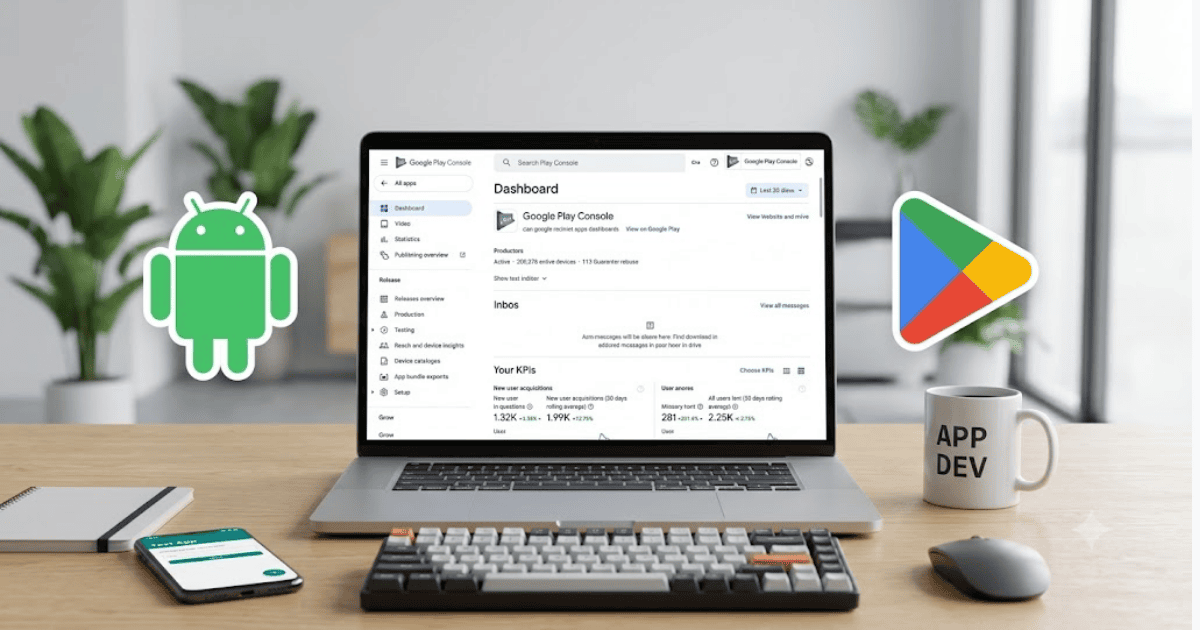
How to Create a Google Play Console Account in 2026 – Step-by-Step Guide
If you want to publish Android apps on the Google Play Store, you’ll need a Google Play Console account. This developer account allows you to upload apps, manage updates, monitor downloads, respond to user reviews, and access detailed performance reports.
Whether you’re an independent developer, freelancer, startup, or software company, learning how to create a Google Play Console account is the first step toward publishing Android applications.
What Is Google Play Console?
Google Play Console is Google’s official platform for Android app developers. It helps developers manage every stage of an app’s lifecycle, from publishing to updates, analytics, and monetization.
With Google Play Console, you can:
- Publish Android apps
- Release app updates
- Monitor downloads
- View crash reports
- Respond to user reviews
- Track app performance
- Manage in-app purchases
- Distribute apps globally
Requirements Before Creating a Google Play Console Account
Before registering, make sure you have:
- A Google account (Gmail)
- A valid phone number
- Government-issued identity documents (if required for verification)
- A payment method for the one-time developer registration fee
- A stable internet connection
How to Create a Google Play Console Account
Step 1: Visit Google Play Console
Open your web browser and visit the official Google Play Console website.
Step 2: Sign In
Log in with your Google account.
If you don’t have one, create a Gmail account first.
Step 3: Register as a Developer
Click Get Started and choose to register as an individual or an organization, depending on your needs.
Step 4: Accept the Developer Distribution Agreement
Read and accept Google’s Developer Distribution Agreement before continuing.
Step 5: Complete Identity Verification
Provide the requested information and complete any identity verification steps required for your account.
Step 6: Pay the Registration Fee
Pay the one-time Google Play Console registration fee using a supported payment method.
Step 7: Complete Your Developer Profile
Enter details such as:
- Developer name
- Contact email
- Phone number
- Website (optional)
After completing these steps, your developer account will be ready to use.
How to Publish Your First Android App
Once your account is active:
- Click Create App.
- Enter your app name.
- Select the default language.
- Complete the required app information.
- Upload your Android App Bundle (AAB).
- Complete the Store Listing.
- Submit your app for review.
Google reviews every app before it becomes available on Google Play.
Benefits of Google Play Console
Creating a Google Play Console account allows you to:
- Publish Android apps worldwide
- Update apps at any time
- Earn revenue through app sales and in-app purchases
- Integrate Google Play services
- Access detailed analytics
- Manage user feedback
Common Registration Problems
Payment Failed
Check that your payment method supports international online transactions.
Identity Verification Delayed
Ensure that the information you provide matches your official documents.
Account Review Taking Longer
Developer account reviews can vary in length depending on verification requirements and other factors.
Tips for New Android Developers
- Follow Google Play Developer Policies.
- Use high-quality app icons and screenshots.
- Write a clear app description.
- Test your app before publishing.
- Keep your app updated regularly.
Final Thoughts
Learning how to create a Google Play Console account in 2026 is essential for anyone who wants to publish Android applications. Once your developer account is ready, you can upload apps, manage updates, monitor performance, and reach millions of Android users around the world.
Whether you’re creating your first mobile app or building a software business, Google Play Console provides the tools you need to manage and grow your Android apps successfully.
Frequently Asked Questions (FAQs)
1. Is creating a Google Play Console account free?
No. Google Play Console requires a one-time developer registration fee before you can publish Android apps.
2. Can I publish free apps on Google Play?
Yes. After creating your developer account, you can publish both free and paid apps, subject to Google Play policies.
3. Do I need a Gmail account to create a Google Play Console account?
Yes. A Google account is required to register and access Google Play Console.
4. How long does it take for a developer account to be approved?
The review and verification process can vary depending on the information provided and Google’s current review procedures.
5. Can I update my app after publishing it?
Yes. Google Play Console allows developers to release updates, fix bugs, add new features, and manage app versions at any time.
- How to Create an Amazon Account in 2026 – Beginner Guide
- How to Create a Canva Account in 2026 – Easy Beginner Guide
- How to Create a Discord Account in 2026 – Beginner Guide
- How to Create a Freelancer.com Account in 2026 Beginner Guide
- How to Create an Outlook Email Account in 2026 – Beginner Guide
- How to Create a GitHub Account in 2026 – Easy Beginner Guide
- How to Create a Google Ads Account in 2026 – Easy Guide
- How to Create an Apple ID in 2026 – Easy Beginner Guide