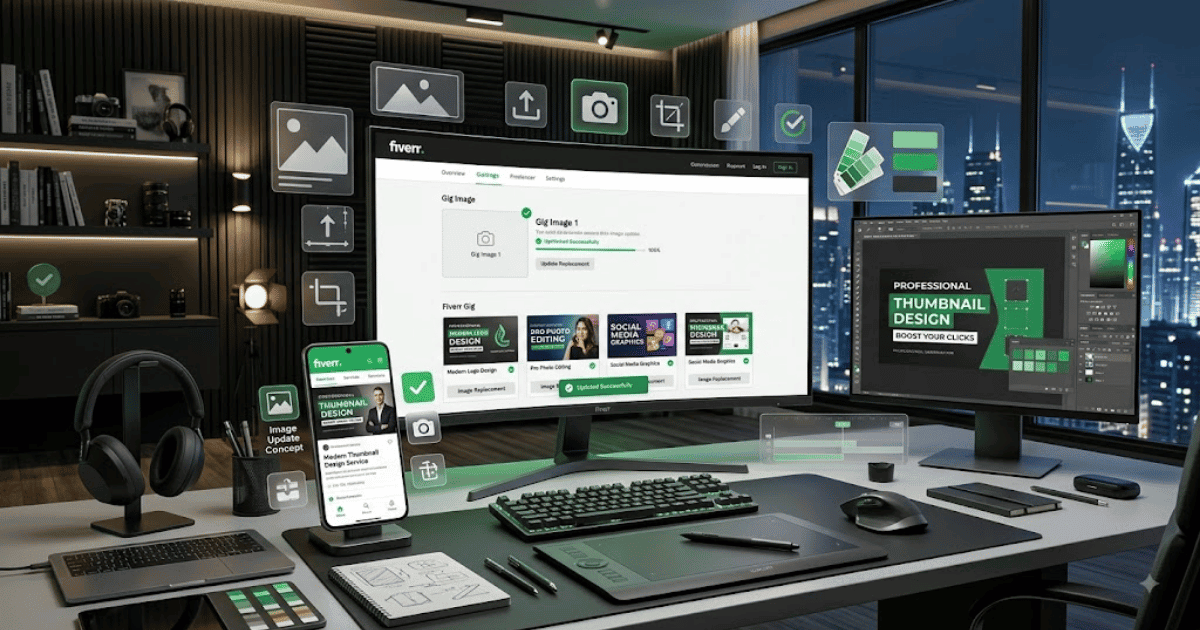
How to Change Your Fiverr Gig Image in 2026 – Complete Step-by-Step Guide for Beginners
Your Fiverr Gig image is one of the first things potential buyers see when browsing services on the platform. A professional, clear, and relevant image can make your Gig look more attractive and help visitors quickly understand what you offer.
If your current Gig image is outdated, poorly designed, or no longer matches your service, you may want to replace it with a new one.
In this guide, you’ll learn how to change your Fiverr Gig image in 2026, along with useful tips for creating a professional Fiverr thumbnail.
What Is a Fiverr Gig Image?
A Fiverr Gig image is the main visual thumbnail associated with your service.
Buyers may see your Gig image while:
- Searching for services
- Browsing Fiverr categories
- Viewing your seller profile
- Comparing different freelancers
Your image should clearly represent the service you offer.
For example, a WordPress developer could use an image that visually represents website design, responsive layouts, or professional business websites.
Why Should You Change Your Fiverr Gig Image?
You may want to update your Gig image if:
- Your current design looks outdated.
- The image is blurry.
- Your services have changed.
- The thumbnail does not clearly explain your service.
- You have improved your branding.
- Your current image is not visually attractive.
Updating your Gig image can improve the presentation of your service, although changing an image does not guarantee more impressions or orders.
How to Change Your Fiverr Gig Image
Step 1: Log In to Fiverr
Open Fiverr in your preferred web browser.
Sign in to your seller account.
Step 2: Open Your Selling Dashboard
Go to the section where you manage your Fiverr seller activities.
Step 3: Open Your Gigs
Find and select:
Gigs
You will see your available service listings.
Step 4: Select the Gig You Want to Edit
Find the Gig whose image you want to change.
Open the available management or editing options.
Step 5: Click Edit
Select the option to edit your Gig.
Fiverr will open the Gig editing interface.
Step 6: Find the Gallery or Gig Image Section
Navigate to the section containing your Gig images.
Depending on Fiverr’s current interface, this section may be called:
- Gallery
- Gig Images
- Media
- Portfolio
Step 7: Remove or Replace the Existing Image
Select the existing image you want to change.
Choose the available option to replace or upload a new image.
Step 8: Upload Your New Fiverr Gig Image
Choose the new image from your computer or device.
Make sure the image:
- Is clear
- Is high quality
- Represents your service
- Follows Fiverr’s current requirements
Step 9: Adjust the Image if Necessary
If Fiverr provides image cropping or positioning options, adjust the thumbnail so that important elements remain clearly visible.
Step 10: Save or Publish Your Changes
Review the updated Gig information and submit your changes.
Depending on Fiverr’s current review process, the updated image may take some time to appear publicly.
How to Create a Professional Fiverr Gig Image
A professional Gig image should communicate your service quickly.
Try to include relevant visual elements without making the design too complicated.
For example, a web development Gig image could include:
- Website mockups
- Desktop and mobile screens
- Professional design elements
- Your main service
- Clean branding
Avoid adding too many unnecessary elements.
Keep Your Design Simple
A Fiverr Gig thumbnail is often viewed at a relatively small size.
Because of this, your design should remain easy to understand.
Use:
- Large visual elements
- Clear composition
- Readable design
- Professional images
- Consistent branding
Avoid overcrowding the thumbnail.
Use High-Quality Images
Low-quality images can make your Gig look less professional.
Always try to use:
- High-resolution graphics
- Sharp screenshots
- Professional mockups
- Clear illustrations
- Original or properly licensed visual assets
Make Your Gig Image Relevant
Your image should match the service described in your Gig.
For example:
WordPress Website Design: Website mockups and responsive screens.
Graphic Design: Creative design samples and visual artwork.
Video Editing: Video timeline, editing interface, and media visuals.
SEO Services: Search analytics, ranking charts, and website optimization concepts.
A relevant image helps buyers immediately understand what you offer.
Fiverr Gig Image Size and Requirements
Fiverr may update its image specifications and requirements over time.
Before uploading your image, check Fiverr’s current guidance regarding:
- Recommended dimensions
- File formats
- File size
- Image quality
- Content restrictions
Using the correct specifications can help ensure that your thumbnail displays properly.
Common Problems
My Fiverr Gig Image Won’t Upload
Try the following:
- Check your internet connection.
- Confirm that the file format is supported.
- Reduce the file size if necessary.
- Try a different browser.
- Refresh the Fiverr page.
My Gig Image Looks Blurry
Use a higher-resolution original image.
Avoid uploading screenshots that have already been heavily compressed.
The Important Part of My Image Is Cropped
Place the main visual elements closer to the center and check how the thumbnail appears after uploading.
My New Image Isn’t Showing
Refresh your Gig page and wait for Fiverr to process the update.
Some changes may also be subject to review.
My Gig Image Was Rejected
Review Fiverr’s current image and content policies.
Make sure your image does not contain misleading information, prohibited content, copyrighted material without permission, or other policy violations.
Best Practices for Fiverr Gig Images
Follow these tips:
- Use a professional design.
- Keep the image relevant to your service.
- Avoid clutter.
- Use high-quality visuals.
- Maintain consistent branding.
- Make important elements easy to see.
- Follow Fiverr’s current image requirements.
- Use original or properly licensed assets.
Should You Change Your Fiverr Gig Image Regularly?
You do not need to change your Gig image frequently without a reason.
However, updating it can make sense when:
- Your branding changes.
- Your service changes.
- The existing image looks outdated.
- You create a significantly better design.
After making changes, monitor your available Gig performance data to understand how buyers respond.
Final Thoughts
Learning how to change your Fiverr Gig image in 2026 is a useful skill for keeping your Fiverr profile and services looking professional.
A strong Gig image should clearly represent your service, use high-quality visuals, and remain easy to understand even when displayed as a small thumbnail.
Combine a professional Gig image with a clear title, detailed description, competitive service packages, and strong communication to create a better overall Fiverr listing.
Frequently Asked Questions (FAQs)
1. Can I change my Fiverr Gig image?
Yes, Fiverr generally provides options for sellers to edit their Gig information and media, subject to its current rules and available editing options.
2. How do I upload a new Fiverr Gig image?
Open your Gig editing section, find the Gallery or media area, and upload or replace the existing image.
3. What size should a Fiverr Gig image be?
Fiverr’s recommended dimensions and technical requirements can change, so check the current Fiverr guidance before creating or uploading your image.
4. Why was my Fiverr Gig image rejected?
The image may not meet Fiverr’s current quality, content, copyright, or policy requirements.
5. Does changing my Fiverr Gig image improve ranking?
Changing your image does not guarantee better rankings. However, a clearer and more professional thumbnail may improve how your service is presented to potential buyers.
- Create Fiverr Account in 2026 – Step-by-Step Beginner Guide
- How to Delete a Fiverr Account in 2026 | Easy Guide
- How to Change Your Fiverr Username in 2026 | Complete Guide
- How to Change Your Fiverr Profile Picture in 2026 Easy Guide
- How to Change Your Fiverr Display Name in 2026 | Easy Guide
- How to Change Your Fiverr Gig Title in 2026 | Easy Guide
- How to Change Your Fiverr Gig Description in 2026 Easy Guide