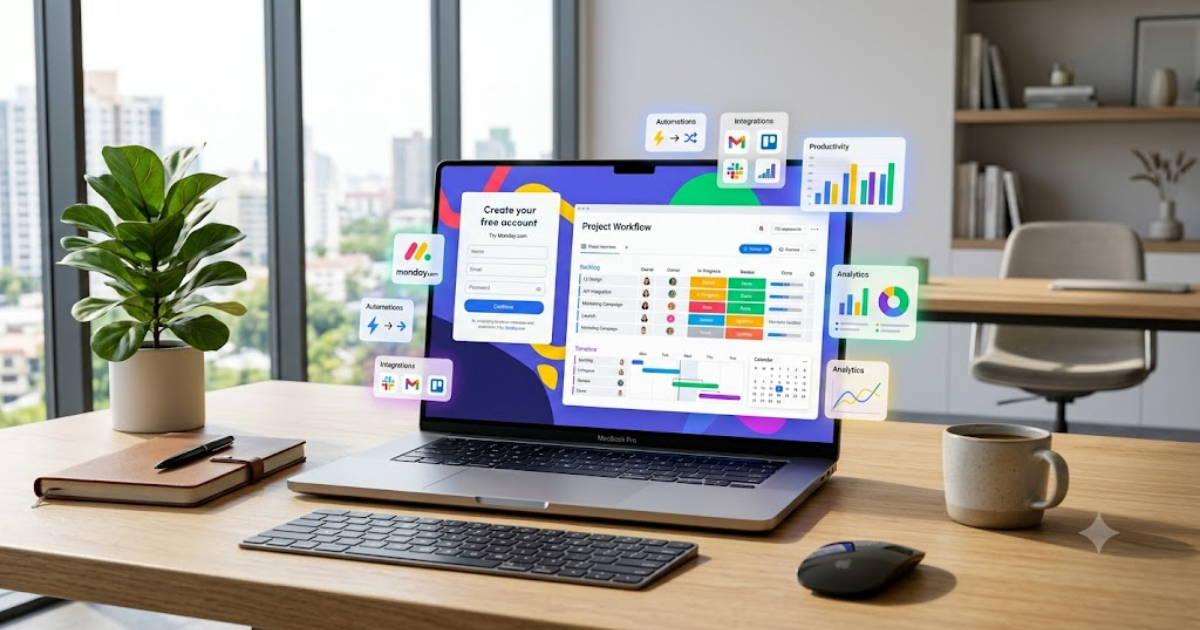
How to Create a Monday.com Account in 2026 – Complete Step-by-Step Guide for Beginners
Managing projects becomes much easier when you use the right productivity platform. Monday.com is one of the world’s most trusted work management solutions, helping businesses, freelancers, startups, students, and enterprise teams organize work, automate repetitive tasks, and collaborate from anywhere.
If you’re new to the platform, this guide will teach you how to create a Monday.com account in 2026 with simple, beginner-friendly steps.
What Is Monday.com?
Monday.com is a cloud-based work operating system (Work OS) that allows individuals and teams to manage projects, track tasks, monitor deadlines, automate workflows, and collaborate in real time.
The platform is suitable for:
- Business owners
- Freelancers
- Marketing teams
- Software developers
- HR departments
- Students
- Remote teams
Features of Monday.com
Monday.com offers powerful features such as:
- Visual project boards
- Task management
- Timeline and Calendar views
- Workflow automation
- Team collaboration
- Time tracking
- Dashboards and reports
- File sharing
- Mobile apps
- Third-party integrations
Requirements Before Creating a Monday.com Account
Before you begin, make sure you have:
- A valid email address
- Google account (optional)
- Computer or smartphone
- Stable internet connection
How to Create a Monday.com Account
Step 1: Visit the Official Website
Open your preferred web browser and visit the official Monday.com website.
Step 2: Click Get Started
On the homepage, click the Get Started button.
Step 3: Enter Your Email Address
Type your email address and continue.
You can also sign up using your Google account if that option is available.
Step 4: Verify Your Email
A verification email will be sent to your inbox.
Open it and click the verification link to activate your account.
Step 5: Complete Your Profile
Enter basic information such as:
- Full Name
- Company Name (optional)
- Job Role
- Team Size
Step 6: Create Your Workspace
Choose a workspace name that matches your business or project.
Examples include:
- Marketing Team
- Website Projects
- Client Work
- Personal Tasks
Step 7: Create Your First Board
Once your workspace is ready:
- Click Create Board
- Give your board a meaningful name
- Add groups and task items
- Invite teammates if needed
Your Monday.com account is now ready to use.
Benefits of Creating a Monday.com Account
Using Monday.com helps you:
- Organize projects professionally
- Increase team productivity
- Track deadlines easily
- Reduce manual work through automation
- Collaborate from anywhere
- Keep everything in one secure workspace
Common Sign-Up Problems
Verification Email Not Received
- Check the Spam folder.
- Confirm that you entered the correct email address.
- Request a new verification email.
Unable to Register
- Refresh the page.
- Clear your browser cache.
- Try another browser.
- Check your internet connection.
Email Already Exists
Simply sign in using your existing account or reset your password.
Security Tips
To keep your account safe:
- Use a strong password.
- Enable two-factor authentication when available.
- Never share your login credentials.
- Review connected devices regularly.
- Keep your recovery email updated.
Final Thoughts
Now that you know how to create a Monday.com account, you’re ready to organize projects, manage daily tasks, and collaborate with your team more effectively. Whether you’re running a business, managing client work, or planning personal projects, Monday.com provides flexible tools that help you stay productive and organized.
Frequently Asked Questions (FAQs)
1. Is Monday.com free?
Yes. Monday.com offers a free plan with limited features for individuals and small teams. Additional features are available through paid plans.
2. Can I create a Monday.com account with Google?
Yes. In many regions, you can sign up using your Google account or an email address.
3. Can I use Monday.com on mobile?
Yes. Monday.com provides official apps for Android and iPhone, along with desktop and web versions.
4. Is Monday.com suitable for small businesses?
Absolutely. It is widely used by freelancers, startups, and businesses of all sizes to manage projects and workflows.
5. Can I invite my team after creating my account?
Yes. You can invite team members at any time and collaborate on projects within your workspace.
- How to Create an Amazon Account in 2026 – Beginner Guide
- How to Create a Canva Account in 2026 – Easy Beginner Guide
- How to Create a Freelancer.com Account in 2026 Beginner Guide
- How to Create a GitHub Account in 2026 – Easy Beginner Guide
- How to Create a Google Ads Account in 2026 – Easy Guide
- Create Fiverr Account in 2026 – Step-by-Step Beginner Guide
- How to Create a PayPal Account in 2026 – Easy Beginner Guide