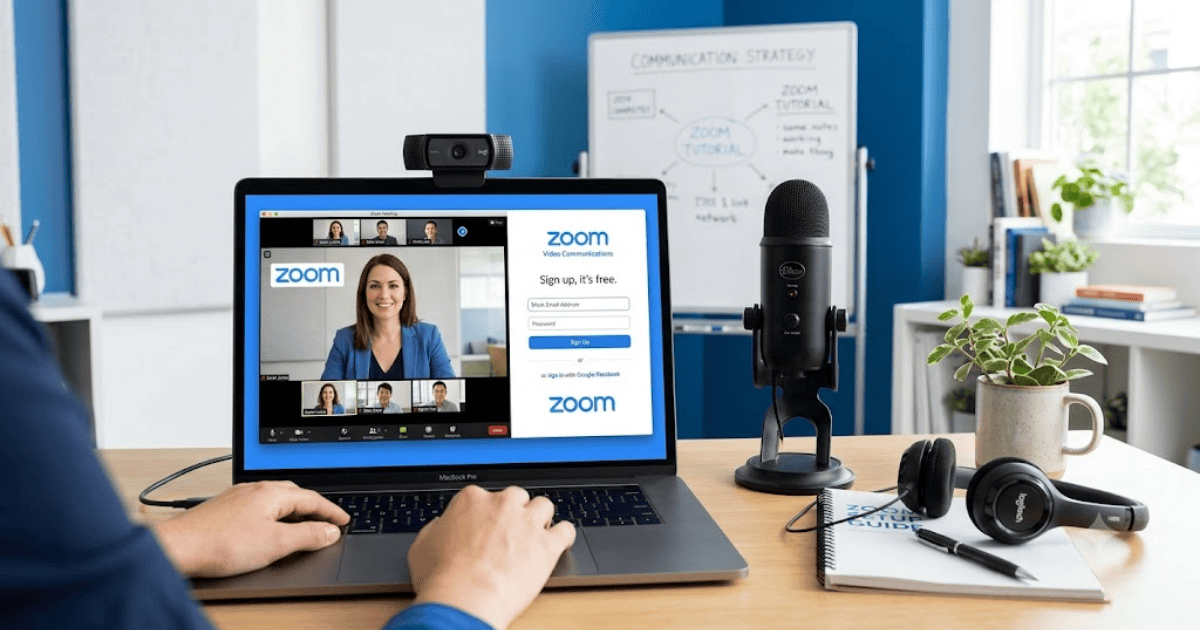
How to Create a Zoom Account in 2026 – Step-by-Step Guide
Zoom has become one of the most popular video conferencing platforms for online meetings, virtual classes, webinars, business collaboration, and remote work. Whether you’re a student, teacher, freelancer, employee, or business owner, creating a Zoom account allows you to communicate with people from anywhere in the world.
This guide explains how to create a Zoom account in 2026 using your computer, Android phone, or iPhone.
What Is Zoom?
Zoom is a cloud-based video communication platform that enables users to host and join virtual meetings, webinars, online classes, and team discussions. It offers features such as HD video calls, screen sharing, chat, meeting recording, and virtual backgrounds.
With Zoom, you can:
- Host online meetings
- Join video conferences
- Attend online classes
- Organize webinars
- Share your screen
- Record meetings
- Chat with participants
Requirements Before Creating a Zoom Account
Before signing up, you’ll need:
- A valid email address
- A smartphone or computer
- A stable internet connection
- A strong password
How to Create a Zoom Account
Step 1: Visit Zoom
Open your web browser and visit the official Zoom website, or download the Zoom app from your device’s app store.
Step 2: Click Sign Up
Select the Sign Up Free button on the homepage.
Step 3: Enter Your Date of Birth
Zoom may ask you to confirm your date of birth before proceeding with registration.
Step 4: Enter Your Email Address
Type your email address and continue.
Alternatively, you may be able to register using supported sign-in options such as:
- Google account
- Apple account
- Facebook account (where available)
Step 5: Verify Your Email
Zoom will send a verification email.
Open your inbox and click the activation link to verify your email address.
Step 6: Create Your Account
Provide the required information, including:
- First name
- Last name
- Password
Choose a strong password that combines letters, numbers, and symbols.
Step 7: Complete Your Profile
After registration, sign in and update your profile by adding:
- Profile photo
- Time zone
- Personal Meeting ID preferences
- Display name
Your Zoom account is now ready to use.
How to Schedule Your First Meeting
Once you’re signed in:
- Click Schedule.
- Enter the meeting title.
- Select the meeting date and time.
- Choose your preferred meeting settings.
- Save the meeting.
- Share the meeting invitation with participants.
How to Join a Zoom Meeting
To join an existing meeting:
- Open Zoom.
- Click Join.
- Enter the Meeting ID.
- Enter the passcode if required.
- Click Join Meeting.
Benefits of a Zoom Account
Creating a Zoom account allows you to:
- Host online meetings
- Join unlimited meetings
- Schedule meetings in advance
- Share your screen
- Chat with participants
- Record meetings (depending on your plan)
- Collaborate with teams remotely
Common Registration Problems
Verification Email Not Received
Check:
- Spam folder
- Promotions folder
- Correct email address
Weak Password
Create a password that meets Zoom’s security requirements.
Unable to Sign Up
Update your browser or Zoom app and ensure your internet connection is stable.
Tips to Keep Your Zoom Account Secure
- Enable two-factor authentication.
- Never share your password.
- Use meeting passcodes when hosting meetings.
- Keep Zoom updated to the latest version.
- Review your security settings regularly.
Final Thoughts
Learning how to create a Zoom account in 2026 is quick and easy. Once your account is active, you can host meetings, attend virtual classes, collaborate with colleagues, and connect with people around the world from almost any device.
Whether you’re using Zoom for education, business, or personal communication, having a Zoom account gives you access to reliable video conferencing tools that make online collaboration simple and efficient.
Frequently Asked Questions (FAQs)
1. Is Zoom free to use?
Yes. Zoom offers a free plan that allows users to host and join meetings. Paid plans provide additional features and higher meeting limits.
2. Can I create a Zoom account with my Google account?
Yes. Zoom supports sign-up using Google, Apple, and email. Other sign-in methods may also be available depending on your region.
3. Can I use Zoom without installing the app?
Yes. Many Zoom meetings can be joined through a supported web browser, although the desktop or mobile app may offer additional features.
4. Can I host meetings with a free Zoom account?
Yes. A free Zoom account allows you to host meetings, though certain limits and features depend on your plan.
5. Is Zoom available for Android and iPhone?
Yes. Zoom provides official apps for Android and iPhone, and it is also available for Windows, macOS, Linux, and web browsers.
- How to Create an Amazon Account in 2026 – Beginner Guide
- How to Create a Canva Account in 2026 – Easy Beginner Guide
- How to Create a Discord Account in 2026 – Beginner Guide
- How to Create a Freelancer.com Account in 2026 Beginner Guide
- How to Create an Outlook Email Account in 2026 – Beginner Guide
- How to Create a GitHub Account in 2026 – Easy Beginner Guide
- How to Create a Google Ads Account in 2026 – Easy Guide
- How to Create an Apple ID in 2026 – Easy Beginner Guide